
On October 30, 2020, the WordPress auto-update system updated live websites from version 5.5.2 to version 5.5.3-alpha, a non-final release. The Core team had to temporarily suspend downloads of version 5.5.2 due to a bug. But an unforeseen side effect occurred: the WordPress API started serving the alpha version instead. WP Tavern ran the headline: “WordPress Auto-Update System Misfires, Updating Live Sites to an Alpha Release.” One agency reported over a hundred affected sites there. This incident contributed to user distrust regarding automatic updates on WordPress.
I myself had several sites affected when I was still working at an agency (right after defending the benefits of automatic updates there… ouch). Following this incident, and like many other users, we chose to adopt the good old habit of waiting a few days before upgrading our sites for any update. A practice that is still relevant in the WordPress community today.
On Reddit in 2022, a user asked the question “Am I dumb for intentionally waiting to update WP?“, a practice shared in the majority of the replies. Cloudways would formalize the advice in 2025: “Wait a few days after major plugin updates (unless it’s a security fix)“. In May 2026, on the eve of WordPress 7.0, the feedback is the same: “For production updates, I’ll wait a few days, at least.“.
Thirteen years after WordPress 3.7 introduced background automatic updates, the practice remains adopted and essentially manual.
What update practices over 13 years?
Today, site owners and professionals who want to control the timing of updates essentially have two strategies:
Disable automatic updates and manage manually
Block automatic updates by defining, for example, a constant in the wp-config.php file such as AUTOMATIC_UPDATER_DISABLED or WP_AUTO_UPDATE_CORE. Then update at the desired time manually or via web hosting, which may include dedicated solutions.
The introduction, in August 2020, of the automatic update activation button in WordPress 5.5 did not fundamentally change the situation. As Wordfence pointed out at the time, this feature boiled down to a simple option integrated into the administration interface: enabled or disabled.
A rigorous approach adopted by many professionals will therefore be to:
- Disable automatic updates to maintain control.
- Monitor new versions as soon as they are released.
- Wait a few days to evaluate community feedback.
- Update manually once the version is validated, testing beforehand in a staging environment for identified risky upgrades.
This method, although effective, has a major drawback: serious WordPress maintenance is time-consuming and therefore potentially costly. Forgetting to regularly check for updates will expose the site to security or compatibility risks.
Using a dedicated plugin
Before and after the 2020 incident, certain plugins provided their solutions to this problem. Let’s take the case of the two most used update managers on the WordPress.org repository, which I have used myself.
Companion Auto Update, a completely free plugin launched in 2016, introduced automatic updates for the core, plugins, and themes, accompanied by a notification and logging system. In 2020, the plugin offered its feature to delay updates by x days, limited to 31 days and applied uniformly to all automatic updates. This solution has its limits, however: the delay applies to all elements, without the possibility of differentiating the delays according to the type of update, and WordPress core updates are not affected (version 3.8.5, March 17, 2022). It should also be noted that the delay is global and not per version: if several plugins publish updates on different dates, they share the same delay counter rather than having an individual delay.
Easy Updates Manager also implemented its solution in 2018. Present on the repository since 2015, originally as stops-core-theme-and-plugin-updates, its primary purpose was the granular deactivation of updates. The plugin transformed over time into an advanced update manager split into a free and premium offering. The delayed updates feature, requested by their users, was added to the premium version of the plugin: which is still the case today. The approach mirrors that of Companion: a global delay parameter applied at all levels, rather than a per-version countdown based on when the site discovers each update.
A limited initial implementation
Companion Auto Update and Easy Update Manager both have the great merit of having offered a solution to the problem shared by users: letting an update mature before applying it. However, their approaches are similar, namely a global delay applied uniformly to all updates. This operation does not accurately reflect the approach adopted by many professionals: waiting for each new version, from the moment it becomes available.
A more relevant approach would be to start a countdown per update the moment the WordPress site detects it, with this countdown running silently in the background, and then letting the installation trigger once the time has elapsed.
Updatronix 1.1, defer updates by item and by version
Updatronix is a new advanced update manager for WordPress developed by me, and I published its first version in March 2026. It is my second, more advanced plugin, after cutting my teeth on ZenPress.
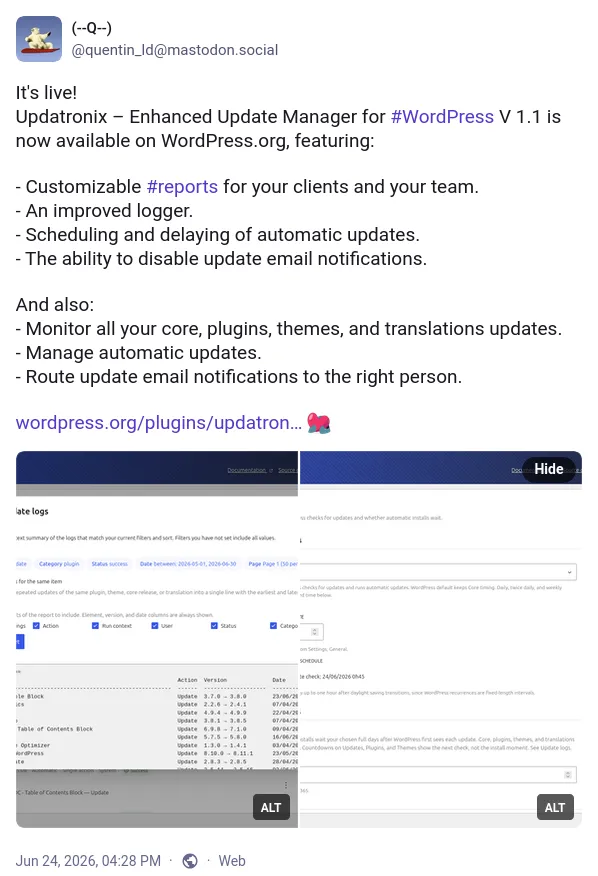
Version 1.1, released in June 2026, introduces the ability to defer all automatic WordPress updates with a finer level of precision: a configurable delay applied individually to each update discovered by the site (core, plugin, theme), each benefiting from its own countdown.
Extending the native WordPress update discovery process
Regularly, via the cron system, your website queries the WordPress API to discover if new updates are available. The exact moment this request is made depends on your site; by default, this process is triggered twice a day starting from the moment you installed WordPress, which explains why you don’t detect available updates at the exact same time across different sites.
In order to allow automatic updates to be deferred, Updatronix hooks into this native process (and also allows you to reconfigure it however you want, but that’s not the topic here). For example : If a new version of a plugin is published on Monday but your site’s cron runs on Wednesday, then Wednesday is day zero.
How it works
Updatronix does not replace the update engine, it hooks in at the exact moment WordPress decides to install the update after discovering it, and asks a question: has this exact offer been seen for at least X days? (X depending on the configuration you have chosen).
To answer this, Updatronix keeps a log of every detected update: what it is (plugin, theme, core, translation), its name and version, along with the date your site first discovered it. On each cron run, if the configured delay has not yet elapsed, the installation is put on hold and the date it will become eligible is recorded. Once the delay has passed, WordPress proceeds with the installation normally, without any intervention on your part. This log cleans itself; when an update disappears from the repository, its entry is automatically deleted (for example : when a plugin is removed, or a version is replaced by a newer one).
User interface
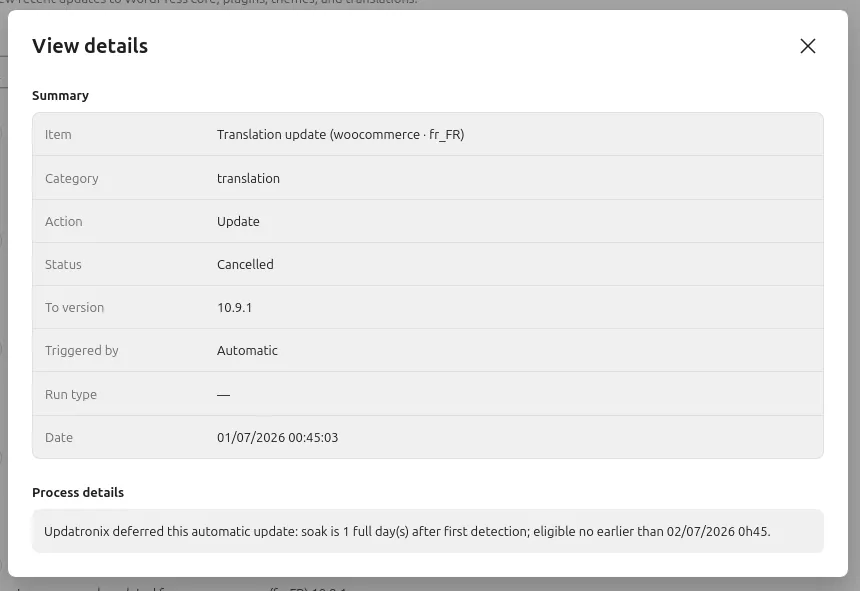
While an update is deferred, the relevant pages in the WordPress admin interface (Updates, Themes, Plugins) display an informational notice.

Updatronix update logs record each deferred offer with the Canceled status and the exact date it becomes eligible, the administrator sees what is pending and when the update will be installed. The deferred update does not trigger native email notifications.

The advantage of deferring updates “per offer” rather than globally
The approach of a professional handling WordPress maintenance is more nuanced than “I’m going to block everything for 7 days”. As we have seen, users wait for a specific plugin to have been out for a few days and thus tested by the community before letting it install. The advantage of a countdown specific to each item allows for a closer alignment with this proven update practice rather than delaying everything all at once.
To understand how WordPress discovers updates in the first place, I have published documentation (in English): Discovery: How WordPress detects available updates.
How to defer automatic WordPress updates with Updatronix
Quick configuration in the advanced update manager.
Access settings
✅ Go to Tools > Updatronix (or Dashboard > Update Logs).
✅ Select the Schedule tab.
Enable the delay
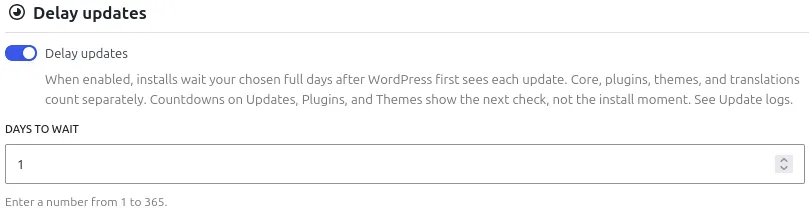
✅ In the Delay Updates section, enable the option.
✅ Set the number of delay days (from 1 to 365 days) that WordPress should wait after an update appears.
✅ (Optional) You can adjust the WordPress check frequency (hourly, twice daily, daily, or weekly) as well as the preferred time.
Save
✅ Save the settings. A notification will appear on the Updates, Plugins, and Themes screens whenever a delay is active.
Check pending updates
✅ Check the Update Logs tab to see the delayed updates, their status (Canceled), and their eligibility date.
Update your sites with peace of mind
I am preparing the professional version which I want to be affordable: Updatronix 3000 (wow, such a stylish name, isn’t it ?). It enriches Updatronix with new features aimed at developers, advanced users, and agencies.
- Developer tools : Hooks, functions, and an API to integrate Updatronix into your own workflow. (For example: Triggering backups, automating maintenance reports…).
- Secure updates : PHP compatibility checking, alerts for abandoned plugins, and version control (git) protection.
- Update flow : Define the exact order in which your plugins update.
- Agency white label.
Coming soon, business model: one payment, one license, one site, lifetime updates. For users who will need advanced support, which is the most time-consuming, an additional annual offer will be available.
I hope you found this post interesting! If you have any questions, or if you want to contribute, don’t hesitate to contact me or leave a little comment!
Sources & References
- WP Tavern : WordPress Auto-Update System Misfires, Updating Live Sites to an Alpha Release
- Reddit : Am I dumb for intentionally waiting to update WP?
- Cloudways : How to Update WordPress Plugins
- Reddit : Tomorrow WordPress 7.0 gets released, are you ready?
- WordPress.org : WordPress 3.7 « Basie »
- Make WordPress Core : Controlling Plugin and Theme Auto-Updates UI in WordPress 5.5
- Wordfence : WordPress Auto-Updates: What Do You Have to Lose?
- WordPress Stack Exchange : Is it possible to prevent website from breaking with auto update?
- Companion Auto Update : Changelog, version 3.8.5 of March 17, 2022
- GitHub — Easy Updates Manager, Issue #207: deferred updates feature request
- WordPress Plugin Handbook : WP-Cron

Leave a Reply