
The Auto-updates tab puts every automatic update decision in one place: WordPress core, plugins, themes, and translations. Use it to choose what updates automatically on your site.
Updatronix stores your choices in WordPress’s own auto-update options, the same ones the core update screens use. Nothing is kept in a parallel setting, so WordPress itself honors your choices, and they stay in effect even if you delete Updatronix later.
Open the tab
- Open Tools → Updatronix (single site) or Updatronix in the Network Admin (multisite).
- Select the Auto-updates tab.
Core updates
The Core updates section has a Core auto-update mode selector with three options:
- All releases, including major (e.g. 6.4 to 6.5) — WordPress updates core for every new release.
- Minor releases only (e.g. 6.4.1 to 6.4.2) — security and maintenance releases only; major upgrades wait for you.
- Disabled (no core auto-updates) — core never updates automatically.
Save by choosing the option; the screen shows Core auto-update setting saved. when the change is stored.
If your wp-config.php file defines the WP_AUTO_UPDATE_CORE constant, WordPress overrides this setting. The section explains: This choice is set in your wp-config.php file. Edit that file to change it.
Plugins and themes
The Plugins and Themes sections list every installed plugin and theme with a search box, its version, description, and a per-item auto-update control:
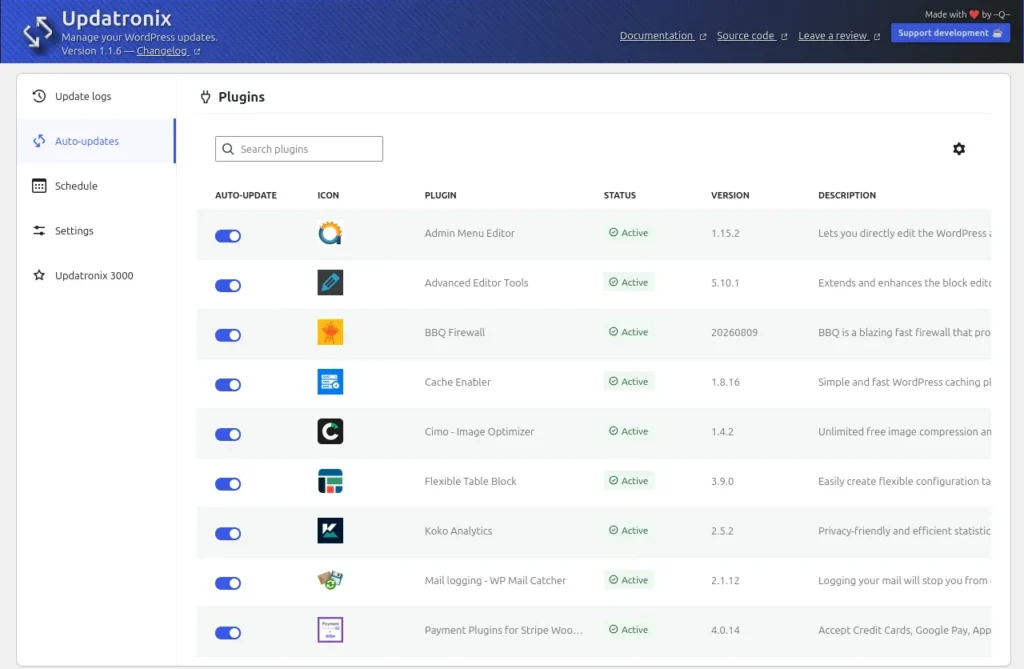
- Enable auto-update for
%s— let this item update automatically - Disable auto-update for
%s— keep this item manual
Use Search plugins or Search themes to find an item. Rows show whether the item currently auto-updates (Active or Inactive).
Two statuses can make a control unavailable:
- Unavailable — automatic updates are not possible for the item. The row explains: Automatic updates are not available for this item (for example, it is not hosted on WordPress.org).
- Locked by Safe Mode due to incompatibility — appears when the Pro edition’s Update Shield has blocked the item because of a version incompatibility (see the Updatronix 3000 documentation).
Changes apply immediately and are saved to the native WordPress options. A success or failure notice appears above the panel, for example Auto-update enabled for this plugin.
Translations
The Translations section has one switch, Translation auto-updates, for language pack downloads. WordPress downloads translation updates automatically by default. Turn this off to skip automatic downloads.
When constants lock automatic updates
Some wp-config.php constants disable automatic updates at the WordPress level. (wp-config.php is the main configuration file, at the root of your WordPress installation.) When one is active, the tab shows a notice and the affected controls are locked, because Updatronix cannot override the file:
| Constant | Effect |
|---|---|
AUTOMATIC_UPDATER_DISABLED (true) | All automatic updates are turned off. Locks core, plugins, themes, and translations. |
DISALLOW_FILE_MODS (true) | WordPress cannot change any files, so all automatic updates are blocked. Locks all sections. |
WP_AUTO_UPDATE_CORE | Controls which core updates run automatically; the core setting cannot be changed on this screen. Locks the core section. |
DISABLE_WP_CRON | WordPress does not run scheduled tasks during normal visits. Does not lock the toggles, but affects when update checks can run. If you use a system cron job, make sure it calls wp-cron.php regularly. |
The notices are informational and can be dismissed from the screen; the underlying constant still applies. Dismissal only hides the notice. WP-Cron is WordPress’s built-in task scheduler; when DISABLE_WP_CRON is set, a system cron job must call wp-cron.php instead.
Where the choices are used
- Core, plugin, theme, and translation automatic updates run on the WordPress background update cycle.
- The Update logs tab records every automatic run, including runs that the delay feature held back or that the Pro edition’s Update Shield prevented.
- The check schedule and the optional release delay are separate settings on the Schedule tab.
See also: Getting started · Schedule · Update logs