
The Settings tab controls update logging and the update notification emails that WordPress sends. The tab description reads: Set up logging, choose how long to keep records, and manage email notifications.
Open the tab
- Open Tools → Updatronix (single site) or Updatronix in the Network Admin (multisite).
- Select the Settings tab.
- After any change, select Save Changes. The button label changes to Saving… while the request runs, and a Settings saved. notice confirms the result.
On multisite, settings apply network-wide.
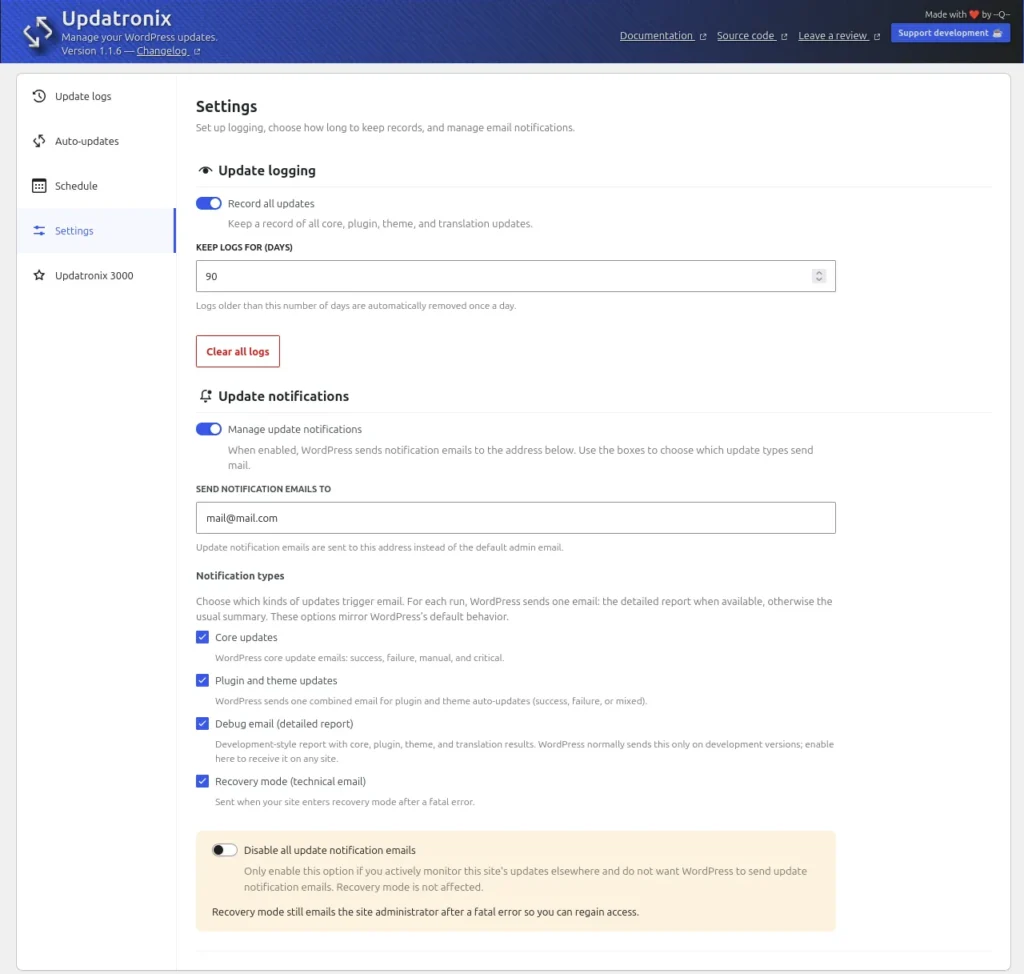
Update logging
The Update logging section has three controls:
- Record all updates: the master switch for the update history. Its description reads: Keep a record of all core, plugin, theme, and translation updates. When it is off, no new entries are recorded and the Update logs tab shows: Update logging is off. Turn it on in Settings to keep a history of updates. Existing entries stay until they expire or are deleted.
- Keep logs for (days): how long entries stay before automatic cleanup. The description reads: Logs older than this number of days are automatically removed once a day. The default is 90 days; accepted values run from 1 to 365. A daily background task removes expired entries.
- Clear all logs: deletes every entry immediately. The confirmation dialog warns: Are you sure you want to clear all update logs? This action cannot be undone. Deleting log entries never changes your site or installed versions; it removes the records only.
Update notifications
The Update notifications section manages the emails WordPress sends after update runs. Updatronix does not send its own emails. It redirects and filters the native WordPress update emails, so everything keeps flowing through WordPress itself.
- Manage update notifications: the master switch for redirecting update emails. When you turn it on, the description explains: When enabled, WordPress sends notification emails to the address below. Use the boxes to choose which update types send mail.
- Send notification emails to: the recipient address, or several addresses separated by commas. The field help reads: Update notification emails are sent to this address instead of the default admin email. The placeholder shows
admin@example.com. WordPress validates each address, and invalid entries are dropped when you save, so reopen Settings after saving to confirm the recipients that were actually stored. If the field ends up with no valid address, WordPress keeps sending the native update emails to the default admin email. - Notification types: the update types that send email. The section intro reads: Choose which kinds of updates trigger email. For each run, WordPress sends one email: the detailed report when available, otherwise the usual summary. These options mirror WordPress’s default behavior.
The four notification types and their descriptions:
| Type | Description shown in the UI |
|---|---|
| Core updates | WordPress core update emails: success, failure, manual, and critical. |
| Plugin and theme updates | WordPress sends one combined email for plugin and theme auto-updates (success, failure, or mixed). |
| Debug email (detailed report) | Development-style report with core, plugin, theme, and translation results. WordPress normally sends this only on development versions; enable here to receive it on any site. |
| Recovery mode (technical email) | Sent when your site enters recovery mode after a fatal error. |
Three rules govern the email flow:
- WordPress sends one email per update run. When the detailed report is sent, the standard summary emails for that run are suppressed; otherwise the standard summary is used.
- Disable all update notification emails: a separate off switch below the notification types. Its description reads: Only enable this option if you actively monitor this site’s updates elsewhere and do not want WordPress to send update notification emails. Recovery mode is not affected. While this switch is on, the recipient address and the notification type boxes are disabled, and the core, plugin, theme, and debug emails are suppressed, no matter how the boxes were set.
- Recovery mode emails are never suppressed. Under the off switch, the section notes: Recovery mode still emails the site administrator after a fatal error so you can regain access. When Manage update notifications is on and Recovery mode (technical email) is ticked, recovery mode emails go to the address you configured instead of the admin email.
See also: Update logs · Schedule · Auto-updates