
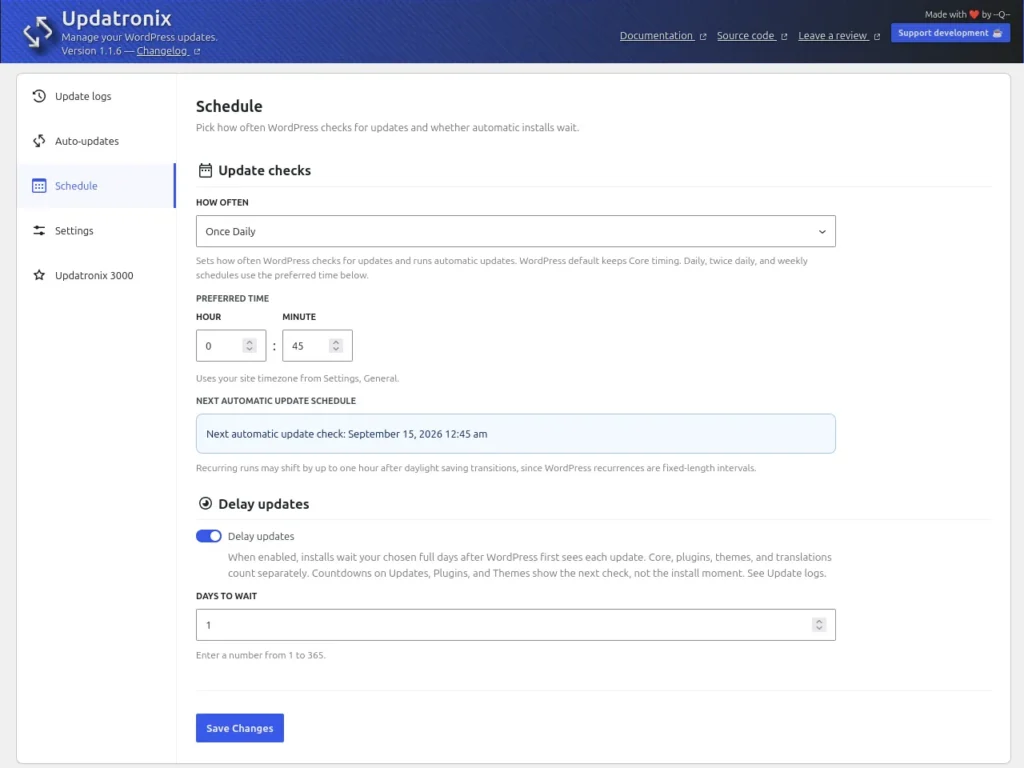
The Schedule tab controls two background behaviors: how often WordPress checks for updates, and how long new releases wait before installing automatically.
- Update checks: pick a frequency and a preferred time of day for the update check cycle.
- Delay updates: hold every new update for a number of full days after WordPress first sees it, so unstable releases can get fixed before they reach you.
Open the tab
- Open Tools → Updatronix (single site) or Updatronix in the Network Admin (multisite).
- Select the Schedule tab.
On multisite, the schedule applies network-wide and is set once, from the Network Admin.
Update checks
The Update checks section has a How often selector:
- Use WordPress default schedule: WordPress keeps its own timing for update checks and automatic updates.
- Hourly, Twice daily, Daily, or Weekly: Updatronix takes over the schedule and runs the WordPress update cycle at that frequency.
The section explains the trade-off: Sets how often WordPress checks for updates and runs automatic updates. WordPress default keeps Core timing. Daily, twice daily, and weekly schedules use the preferred time below.
When you pick a daily, twice daily, or weekly schedule, set the Preferred time with the Hour and Minute fields. The note under the fields says: Uses your site timezone from Settings, General. If you do not set a time for a daily schedule, the run happens at 03:00 (3 AM) in your site timezone. An hourly schedule runs on the hour, with no preferred time.
The panel shows the next run under Next automatic update schedule, for example Next automatic update check: June 15, 2026, 3:00 AM. It also notes: Recurring runs may shift by up to one hour after daylight saving transitions, since WordPress recurrences are fixed-length intervals.
Select Save Changes to apply.
What happens with a custom schedule
WordPress checks for updates on a background event (wp_version_check) plus separate plugin and theme events. When you choose a custom frequency:
- Updatronix reschedules the core update check event to your chosen frequency and preferred time.
- Before each core check runs, Updatronix refreshes the plugin and theme update data, so one cycle finds everything.
- The separate plugin and theme events are removed so the update pipeline does not run twice.
The native WordPress Dashboard → Updates screen reads the same event, so the countdown it shows matches your chosen schedule.
If WordPress’s own scheduling was replaced and you switch back to Use WordPress default schedule, Updatronix restores the original WordPress events. Deactivating the plugin restores them too.
Note on disabled WP-Cron: WP-Cron is WordPress’s built-in task scheduler. If DISABLE_WP_CRON is set in your wp-config.php file (the main configuration file, at the root of your WordPress installation), scheduled tasks do not run during normal visits. Set up a system cron job that calls wp-cron.php regularly, or the checks and the delay never run. The Auto-updates tab shows a notice about this constant.
Delay updates
The Delay updates section holds releases back from automatic installation:
- Turn on the Delay updates switch.
- Enter the number of Days to wait, from 1 to 365. The field only accepts a number in that range.
- Select Save Changes.
While the delay is on, WordPress does not install a new version of an item automatically until the full number of days has passed since WordPress first saw that version. Core, plugins, themes, and translations each keep their own timer, and each specific update (for example, plugin version 2.1) has its own countdown.
The panel explains: When enabled, installs wait your chosen full days after WordPress first sees each update. Core, plugins, themes, and translations count separately. Countdowns on Updates, Plugins, and Themes show the next check, not the install moment. See Update logs.
Two limits apply:
- The delay covers automatic installs only. Manual updates, and updates you start yourself from the WordPress admin, install immediately.
- When an update is waiting, the Update logs tab records it as Delayed with a message using this template:
Updatronix deferred this automatic update: soak is %1$d full day(s) after first detection; eligible no earlier than %2$s.
Notices on the native update screens
While the delay is active, WordPress’s own Updates, Plugins, and Themes screens show an informational notice:
Delayed updates are on in Updatronix: WordPress waits
Nfull days after it first sees an update before installing it automatically.Countdowns on this screen show when the next automatic update check may run, not when a delayed install happens. Each update keeps its own timer. Details stay in Update logs.
Users who can manage Updatronix get links to the Schedule tab and Update logs from the notice. Other users see: Ask a site administrator who can open Tools → Updatronix to change delay settings or review Update logs.
Troubleshooting the schedule
- The Next automatic update schedule line is missing or says Schedule information is not yet available.: the update check data has not loaded yet; refresh the page.
- You chose a custom frequency but nothing runs: check that WP-Cron works on your site and that
DISABLE_WP_CRONis not set, or that your system cron callswp-cron.php. - Entries keep appearing in Update logs as Delayed: that is expected while Delay updates is on. Lower the day count or turn the switch off to install sooner.
See also: Auto-updates · Update logs · Settings