
The Update logs tab records every update on your site: WordPress core, plugins, themes, and translations. Use it to see what changed, when, why, and whether it worked.
What gets logged
Updatronix records the updates that run through the WordPress native update engine, including:
- automatic updates that run in the background
- manual updates, including bulk plugin and theme updates
- plugin and theme installs, reinstalls, and uninstalls
- core rollbacks
- translation (language pack) downloads
- update runs started with WP-CLI, the WordPress command-line interface
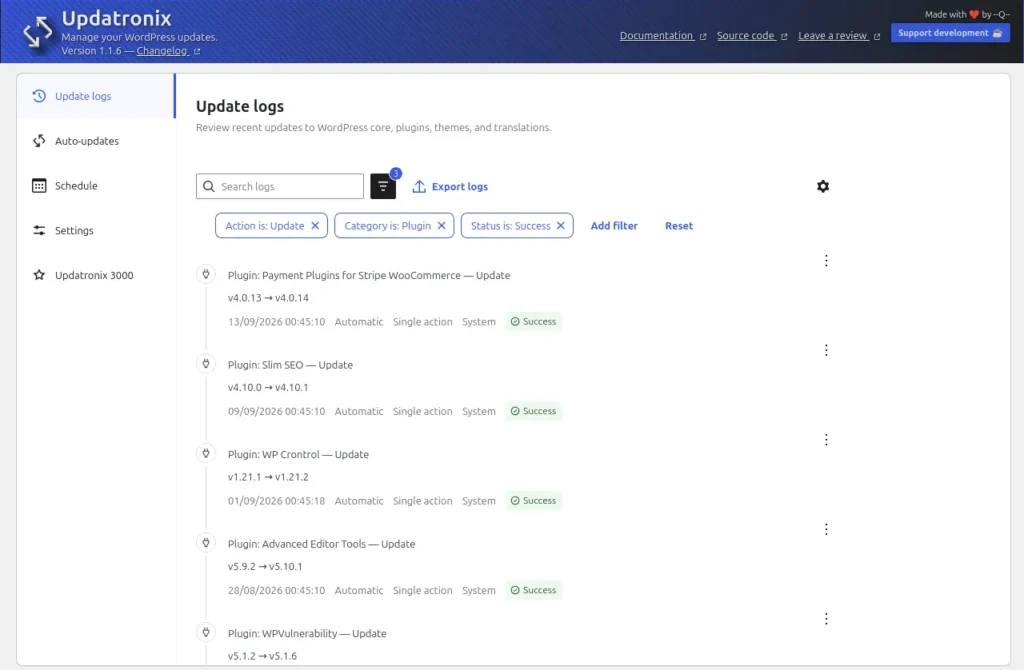
Each entry records the category (Core, Plugin, Theme, or Translation), the item name, the version before and after the change, the action that ran, the status, who or what triggered the run, and when it happened.
The log reports what WordPress itself reports. It cannot undo an update; for that, use a backup or the WordPress rollback features where they exist.
Open the log
- On a single site, open Tools → Updatronix or choose Update logs under the Dashboard menu.
- On multisite, open Updatronix in the Network Admin.
- Select the Update logs tab.
Each row holds one entry. A row shows an icon, a title that carries the category and the action, the version change or summary, and the Date, Triggered by, Run type, User, and Status columns. A plugin update title reads Plugin: Akismet — Update.
If logging is off, the tab shows a notice: Update logging is off. Turn it on in Settings to keep a history of updates. See Settings to turn it on.
Understand the entry fields
Open View details on any row to see the full entry. The details dialog shows:
- Summary: a plain-language description of what happened
- Item: the affected plugin, theme, translation, or WordPress core
- Category: Core, Plugin, Theme, or Translation
- Action: what ran (see the action labels below)
- Status: how the run ended
- From version and To version: the version change
- Date: when the entry was recorded
- Triggered by: how the run started (Automatic, Manual, or File upload)
- Run type: Bulk action or Single action; the field shows an em dash when it does not apply
- User: the account that performed the run, shown as a display name, System, or User #N
- Process details and Advanced details: the technical record of the run
Status values use these labels: Success, Error, Cancelled, Delayed, Info, and Warning. Actions use these labels: Update, Rollback, Install, Reinstall, Failed, Uninstall, Delete, Prevented, Incompatible, Disabled, and Auto-updates disabled by Safe Mode, which appears when the Pro edition’s Update Shield stops an update.
Note on server paths: paths inside the technical details are redacted for security. The dialog says: Server paths have been redacted for security.
Filter, search, and sort
Use the controls above the table to narrow the list:
- Search logs: free-text search across titles and details
- Filters for Date, Category, Action type, Status, and User. Category, Action type, and Status offer fixed value lists; the User filter lists the users present in your log
- Sort: newest first (the default) or oldest first
- Pagination controls: 50 entries per page by default, with other page sizes available
All filters combine. To see only failed plugin updates from the last week, filter by Category = Plugin and Status = Error, then set the Date range.
Delete a single entry
- On the row you want to remove, open the row actions.
- Choose Delete log.
- Confirm the deletion. The dialog warns: Delete this log entry permanently? This action cannot be undone.
Deleting an entry does not affect the site or the update it records; it removes the record only. To empty the whole log, use Clear all logs in Settings instead.
Export the log
Export logs generates a plain-text maintenance report from the entries that match your current filters and sort.
- Apply the filters you want. Filters you have not set include all values.
- Select Export logs.
- In the Export update logs dialog, choose the report options:
- Merge logs for the same item: combine repeated updates of the same plugin, theme, core release, or translation into one line, with the earliest and latest versions
- Report columns: pick which columns to include. Element, version, and date columns are always shown; you can add or remove the status, action, run context, user, and similar columns
- Select Generate export.
- Copy the result with Copy with formatting or Copy without formatting, and paste it into your report.
A few notes on exporting:
- The export output expires after 15 minutes. The dialog says: Export ready. Copy the report to save it. It expires after 15 minutes.
- A header line above the report lists the filters you applied (Filters applied), or states that no filters were applied.
- Exports are rate-limited. Start too many in a row and you see: Too many exports started recently. Wait a minute, and then try again.
- Very large exports are stopped or truncated with an explanatory notice. Narrow your filters and export again.
- Export runs and their outcomes go into the plugin’s export audit trail.
How long entries are kept
A scheduled task runs once a day and removes entries older than the retention period. The default is 90 days. Set it from 1 to 365 days on the Settings tab, under Keep logs for (days).
What the log cannot show
- Updates that ran before you activated Updatronix
- Updates performed outside WordPress, for example directly over FTP or by your host’s tools
- The delay countdown of a specific update; see the Delay updates explanation in Schedule
See also: Getting started · Troubleshooting